Label Logic: How to Supercharge Your Trello Searches
testest
9 min read
The Power of Trello Labels
Are you tired of endless scrolling through your Trello boards, desperately searching for that one crucial card? You're not alone. While Trello is a fantastic tool for project management, a recent study showed that users spend an average of 20% of their time just searching for information. That's a whole day wasted each week!
Labels are more than just colorful tags; they're essential for bringing clarity and efficiency to your Trello workflow. Think of them as a GPS for your projects, guiding you to the information you need, exactly when you need it.
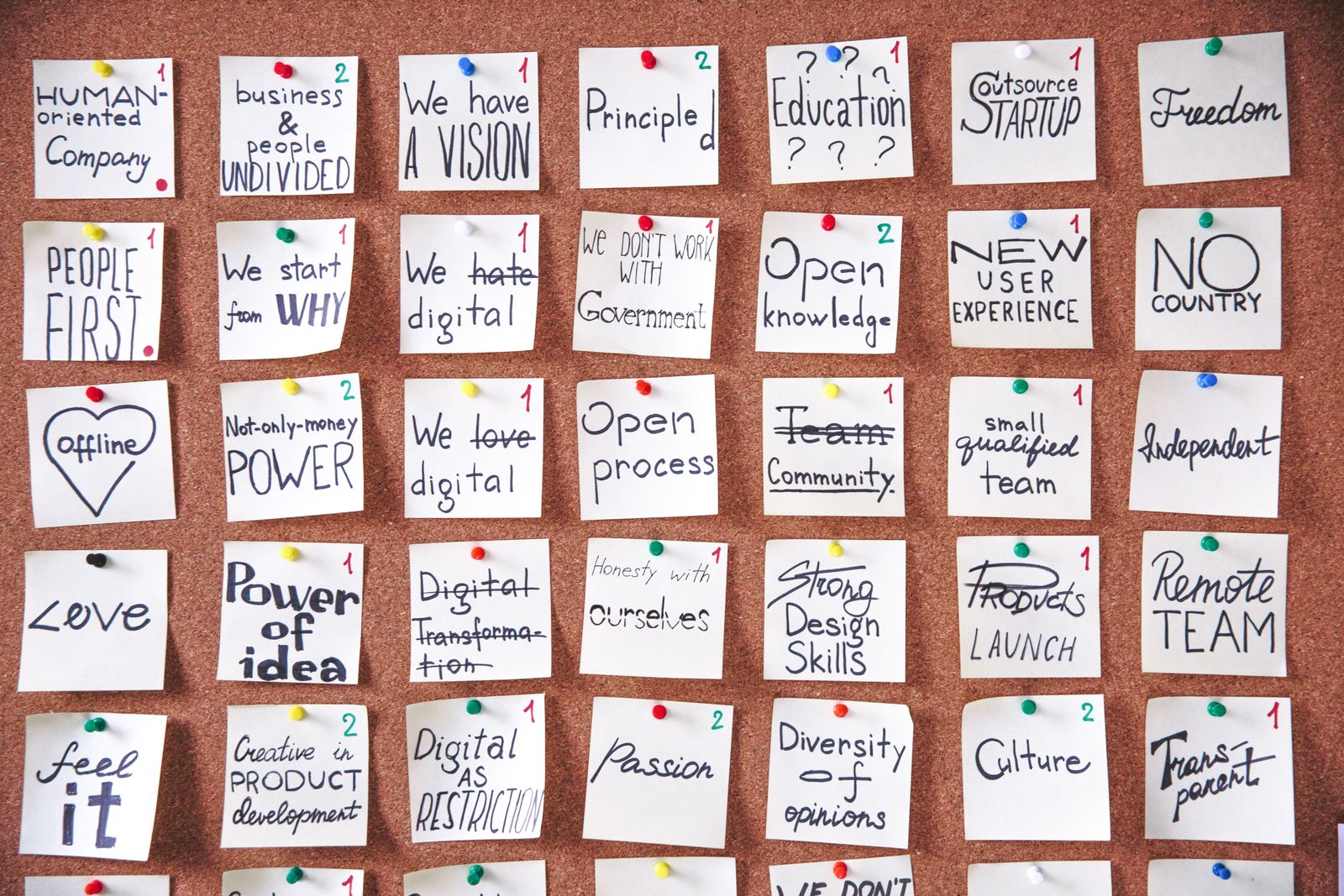
A visual representation of different labels or tags, akin to those used in Trello, displaying keywords like "Vision," "People First," and "Team Community," highlighting the diverse categories labels can represent.
This guide will show you how to master Trello label searches. Forget endless scrolling and frantic clicking. You'll learn how to find exactly what you're looking for, instantly transforming your Trello boards into well-oiled productivity machines!
Understanding Trello Labels
Before diving into search strategies, let's quickly review what Trello labels are all about.
What are Trello labels?
Trello labels are visual tags that you attach to cards to categorize and prioritize them. Think of them as color-coded keywords that help you quickly identify the status, type, or any other relevant attribute of a task. You can use them to signify anything from task urgency (red for "Urgent!") to project phase (blue for "In Development") to team assignment (green for "Marketing Team"). They're incredibly versatile!
How to Create and Assign Labels
Creating and assigning labels is a breeze:
- Open a card: Click on the card you want to label.
- Click "Labels": In the card's back, you'll see a "Labels" button. Click it.
- Create a new label (if needed): You can choose from existing labels or create a new one by clicking "Create a new label."
- Name your label: Give your label a descriptive name (e.g., "High Priority," "Content Creation," "Bug").
- Choose a color: Select a color that visually represents the label's meaning.
- Click the label: Click on the label to assign it to the card. It will appear at the top of the card.
Best Practices for Label Naming
To truly harness the power of labels, consistency is key. Here are a few best practices to keep in mind:
- Consistency: Use the same labels consistently across all your boards and projects. This avoids confusion and ensures accurate search results.
- Clarity: Choose label names that are clear, concise, and easy to understand. Avoid jargon or overly technical terms.
- Specificity: Be specific enough to differentiate between different categories. For example, instead of just "Priority," use "High Priority," "Medium Priority," and "Low Priority."
- Limited Palette: While Trello offers a wide range of colors, stick to a limited palette to avoid visual overload. Assign specific meanings to each color and stick to them. Think of it like curating your own color-coded language!

A neatly organized drawer with color-coded compartments, mirroring the clarity and structure that well-defined Trello labels bring to project management.
The Basics of Searching for Labels
Alright, let's get to searching! Trello offers several ways to find cards based on their labels.
Using the Trello Search Bar
The most straightforward way to search for labels is by using the search bar at the top of your Trello screen. Simply type in your search term and hit enter. Trello will then display all cards that match your query. Easy peasy!
Searching by Label Name
When searching by label name, Trello will look for both exact and partial matches. For example, if you search for "Blog," Trello will return cards with labels named "Blog Post," "Blog Ideas," and even just "Blog."
Searching by Label Color
Sometimes, you might remember the color of a label but not its exact name. No problem! You can search by color by typing "color:red" (or blue, green, yellow, etc.) into the search bar. This will return all cards with labels of that specific color.
Advanced Label Search Techniques
Ready to take your label searching skills to the next level? These advanced techniques will help you pinpoint exactly what you need, even in the most complex Trello boards.
Using Search Operators
Trello's search operators allow you to combine and refine your search terms for more accurate results. Think of them as secret ingredients for supercharged searches!
The "+" Operator (AND)
The "+" operator allows you to search for cards that have both of the specified labels. For example, searching for "red + urgent" will return only cards that have both the "red" label and the "urgent" label. This is perfect for finding tasks that are both high priority and require immediate attention.
The "-" Operator (NOT)
The "-" operator allows you to exclude cards with a specific label from your search results. For example, searching for "project - completed" will return all cards related to the "project" label, except those that also have the "completed" label. This is useful for focusing on tasks that are still in progress.
Searching Within Specific Boards
By default, Trello searches across all your boards. To narrow your search to a specific board, use the "board:" operator followed by the board's name. For example, "board:Marketing Campaign blog post" will only search for cards with the "blog post" label within the "Marketing Campaign" board.
Searching Across Multiple Boards
While the "board:" operator focuses your search, sometimes you need to see the big picture. To search across all your boards, simply omit the "board:" operator and use your label search terms.
Filtering Cards by Labels
While the search bar is great for quick lookups, Trello's "Filter" option offers a more persistent and visual way to find cards based on labels.
Using the "Filter" Option
To access the filter option, click the "Show Menu" button on your board, then select "Filter Cards."
Filtering by Multiple Labels
The filter menu allows you to select multiple labels to display only cards that have any of the selected labels. This is useful for viewing all tasks related to a specific project, regardless of their individual status.
Saving Label Filters
Unfortunately, Trello doesn't natively allow you to save filter configurations. However, you can use browser extensions like "Trello Filter Saver" to save and quickly apply your favorite filter combinations. A little extra effort for a lot of saved time!
Real-World Examples
Let's see how these label search techniques can be applied in different scenarios.
Project Management
Imagine you're managing a complex software development project. You use labels to track the progress of tasks (e.g., "To Do," "In Progress," "Testing," "Completed") and the type of task (e.g., "Frontend," "Backend," "Database"). To find all frontend tasks that are currently in progress, you would search for "Frontend + In Progress." This allows you to quickly assess the workload of your frontend team. As one project manager wisely stated:
"if everything is priority then nothing is."

Using color palettes in Trello can help differentiate and focus on the most important projects.
So, use labels to differentiate and focus.
Content Calendar
Let's say you're managing a content calendar for a marketing team. You use labels to categorize different types of content (e.g., "Blog Post," "Social Media," "Email") and their status (e.g., "Drafting," "Editing," "Approved," "Published"). To find all social media posts that are ready to be published, you would search for "Social Media + Approved." This ensures that your social media channels are consistently updated with high-quality content.
Bug Tracking
Consider a scenario where you're using Trello to track bugs in a software application. You use labels to indicate the severity of bugs (e.g., "High," "Medium," "Low") and their assignment status (e.g., "Unassigned," "Assigned," "In Progress," "Resolved"). To find critical bugs that need immediate attention and haven't been assigned to a developer yet, you would search for "High + Unassigned." This helps you prioritize bug fixes and ensure a smooth user experience.
Troubleshooting Label Search Issues
Even with the best techniques, you might encounter some hiccups along the way. Here's how to troubleshoot common label search issues.
"Why can't I find my label?"
Double-check your spelling and make sure you're searching within the correct board. Typos are the most common culprit! Also, ensure the label is actually assigned to the card you're looking for.
"My search is too broad."
Use search operators like "+" and "-" to narrow down your search results. Be more specific with your label names. For example, instead of just "Issue," use "Customer Issue" or "Technical Issue."
"Labels aren't displaying correctly."
Try clearing your browser cache and cookies, or updating your browser to the latest version. Sometimes, Trello updates can also cause temporary display issues.
"I have conflicting labels!"
Sometimes, you might find yourself in a situation where labels seem to contradict each other (e.g., "High Priority" and "On Hold"). In these cases, it's crucial to re-evaluate your label system and ensure that each label has a clear and distinct meaning. Consider creating more specific labels or using custom fields to capture additional information.
"My board is cluttered with labels!"
If you find that your board is becoming visually overwhelming with too many labels, it might be time to prune your label system. Remove any labels that are no longer relevant or consolidate similar labels into a single, more general label. Remember, the goal is to simplify your workflow, not complicate it.
Tips and Tricks for Optimizing Label Usage
Here are a few extra tips to help you get the most out of your Trello labels.
Review and Update Your Label System
As your projects evolve, your label system should evolve with them. Regularly review your labels and make sure they're still relevant and effective. Are they still serving their purpose?
Use a Consistent Color Palette
Assign specific meanings to each color and stick to them. This will make it easier to visually identify cards and quickly understand their status.
Train Your Team
Ensure that everyone on your team understands how to use labels consistently. This will improve collaboration and ensure accurate search results. As one user on Reddit pointed out:
good communication skills are more important to success than a good project plan
Consistent label usage is part of that communication.
Conclusion
You've now unlocked the secrets to supercharging your Trello searches with labels! By mastering these techniques, you can transform your Trello boards from overwhelming to-do lists into organized, efficient project management hubs.
But don't stop here! The real power of Trello lies in its ability to adapt to your specific needs. Experiment with different label combinations, explore advanced search operators, and continuously refine your label system to optimize your workflow.
Ready to take your Trello skills to the next level? Start by implementing these label search techniques in your own Trello boards today!
Now it's your turn! What are your favorite Trello label tips and tricks? Share them in the comments below! We'd love to hear how you're using labels to boost your productivity.
Next up, learn more about project management methodologies: